Schedule
The Schedule panel keeps working hours and bookings. From it the bot shows clients the free time.
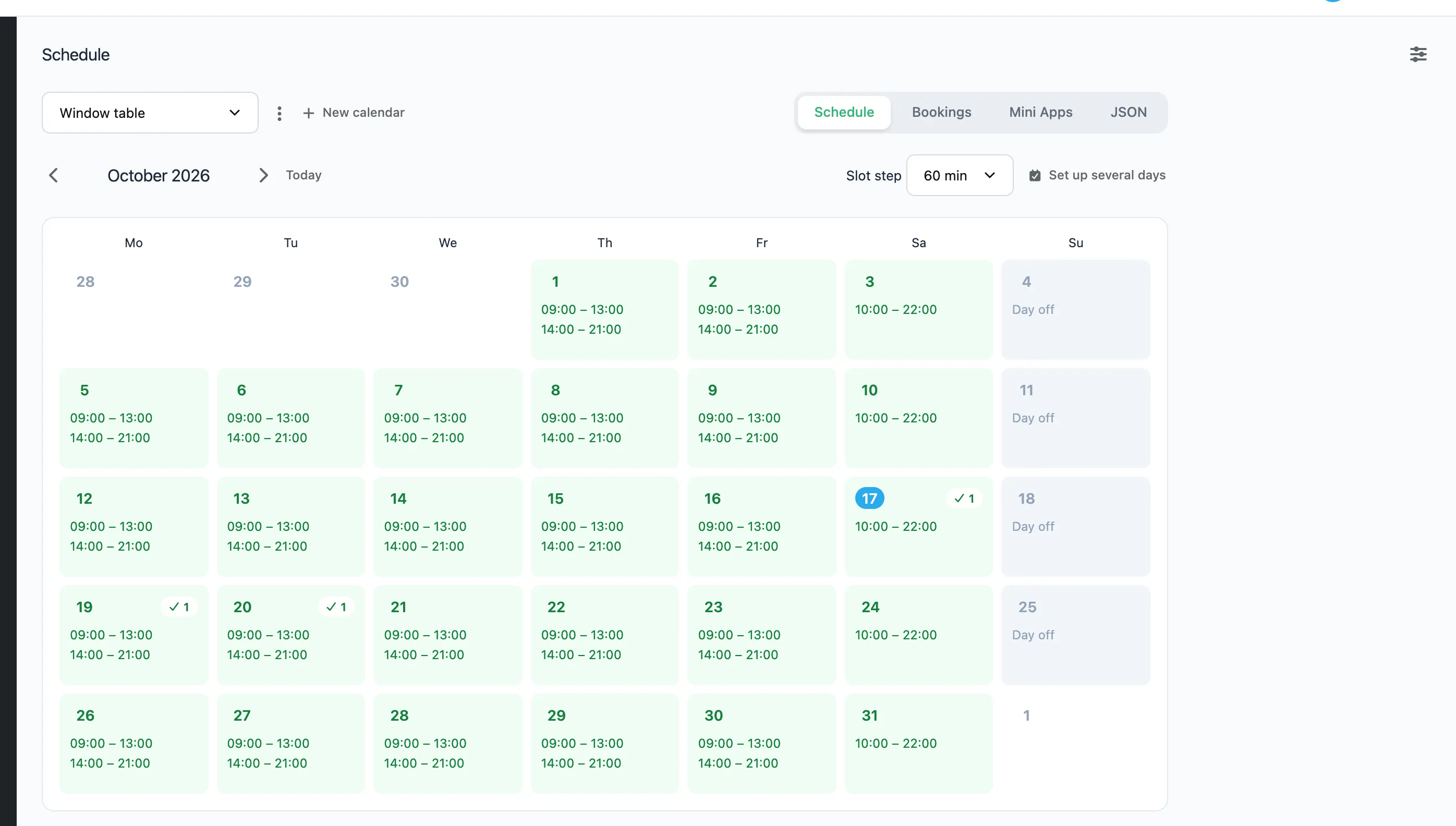
The Booking template adds this panel. You can also create it on its own, as the Panels page describes.
Calendars
Keep a separate calendar for everyone clients book with: a person, a room, a table or a service. In the Booking template, a client sees the calendars' names when there are several.
- "New calendar" creates a calendar. Give it a name and a description.
- The list at the top switches between calendars.
- The ⋮ menu next to the list edits or deletes the calendar. Deleting a calendar deletes its working hours and bookings too.
Working hours
- On the "Schedule" tab, click a day in the calendar.
- Set an interval: "Start" and "End". To leave a break, press "Add interval" and set a second one, for example 09:00–13:00 and 14:00–18:00.
- Press "Save".
"Make day off" removes every interval of the day.
To give several days the same hours, press "Set up several days", mark the days in the calendar and press "Configure".
"Slot step" is the length of one booking, from 15 minutes to 2 hours. The bot splits the intervals into slots of that length. The last slot has to end within the interval.
Changing the working hours does not cancel bookings already made. The tick badge on a day shows how many bookings it has.
Bookings
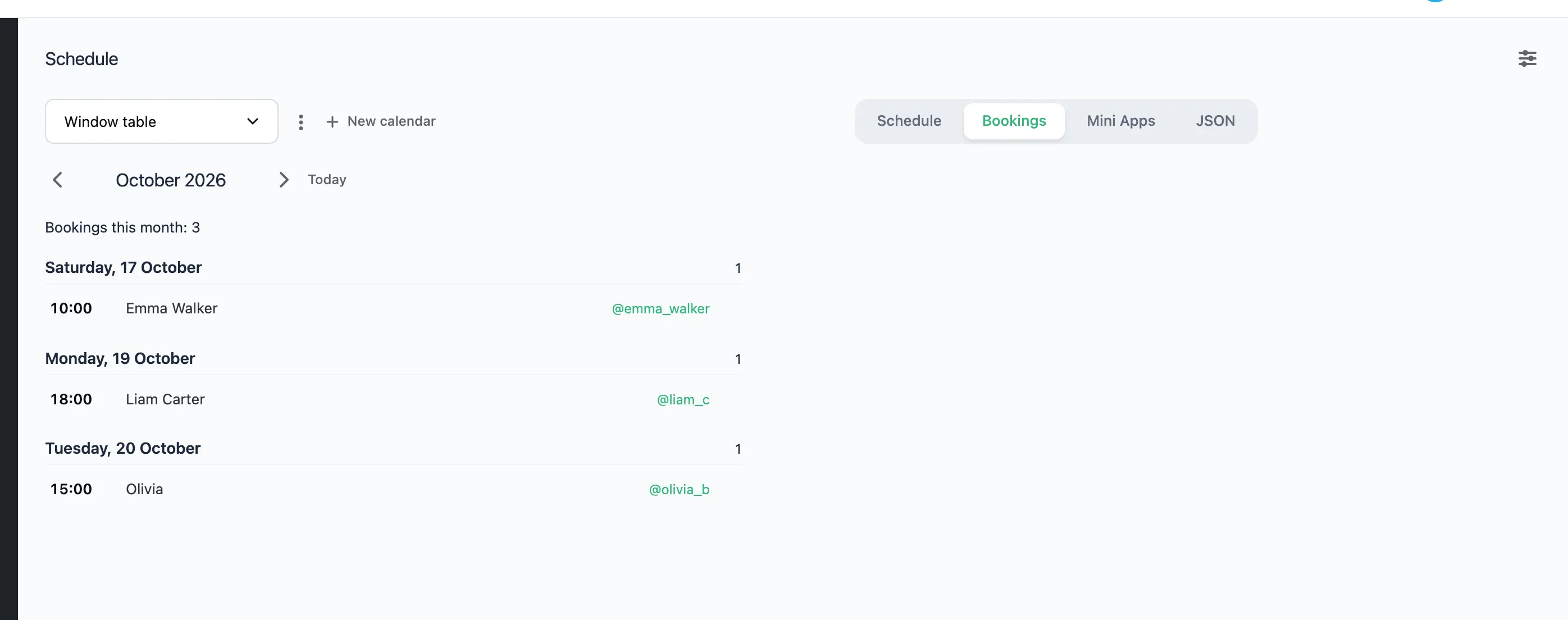
The "Bookings" tab lists the month's bookings by day: the time, the client's name and their Telegram. If the client left a comment, it shows under the booking.
Click a booking to add a note. Only you see the note. It is not sent to the client.
Mini Apps
The "Mini Apps" tab shows how a Mini App looks in Telegram. There are two:
- Calendar — a month where only the days with free time can be tapped. The bot gets the date.
- Week grid — a week with the free hours. The bot gets the day and the time.
To show a Mini App to a client, add a button with the Launch Web App step and pick it in the "Mini App" field. Next to the preview it says what the Mini App shows and what the bot gets.
Look
Under the Mini App's description is the "Look" block:
- Button colour. Without a colour, the buttons follow the client's Telegram theme.
- Corners: "Rounded" or "Sharp".
The background and the text always follow the client's Telegram theme. Each Mini App has its own look.
JSON
The "JSON" tab shows the calendar's data as it is. You can change it there directly.