How to build a Telegram bot scenario with buttons, conditions and variables
A Telegram bot's scenario is assembled from steps in Lanka's editor, with no code: messages, buttons, questions, conditions. One conversation is a flow. A flow starts with a command (such as /start), with words in the person's message, or with a jump from another flow. A bot is made of several flows that hand the person over to one another.
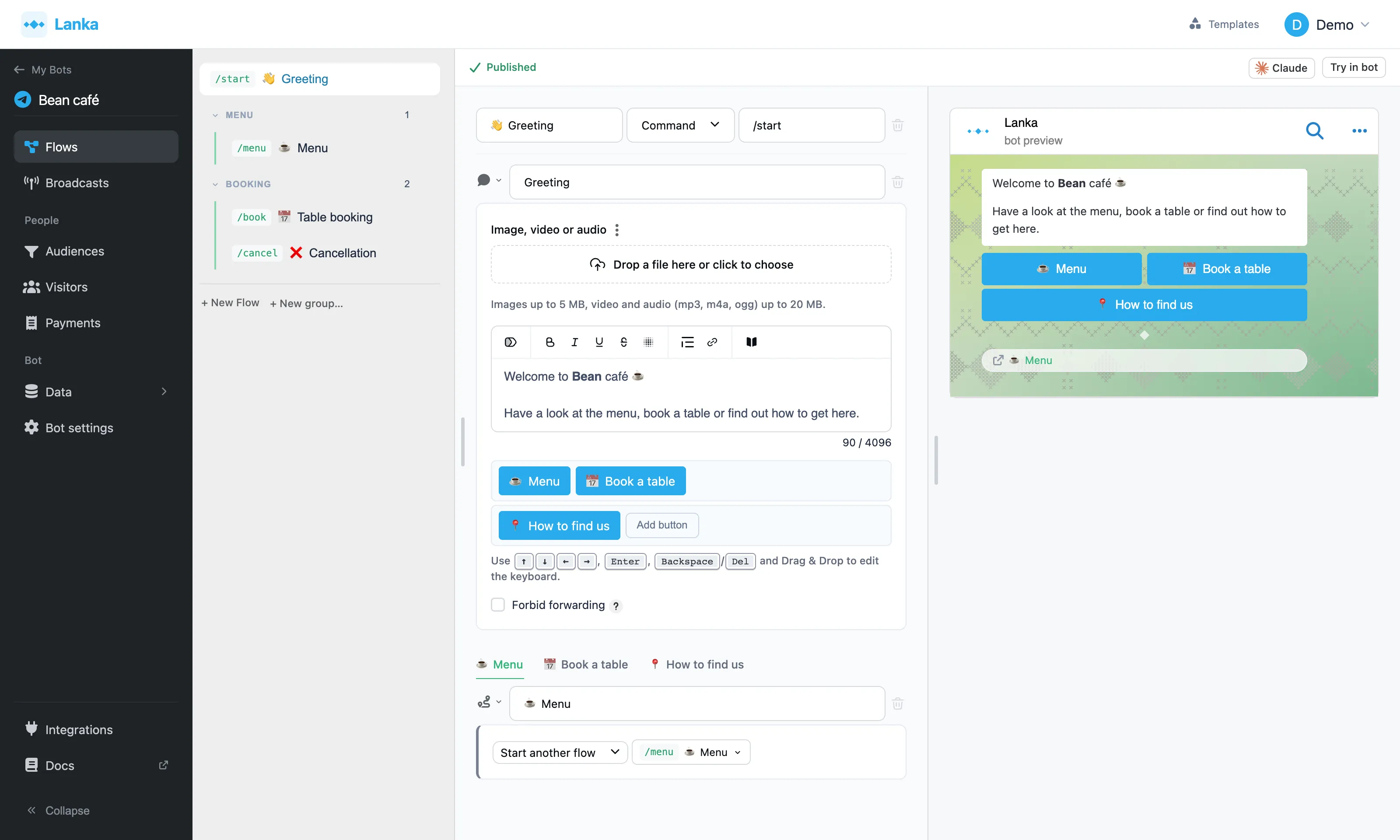
The list of flows is on the left, the steps of the open flow in the middle, the preview on the right.
Your first flow
- Open "Flows" and press "New Flow". A bot's first flow answers the
/startcommand right away, so it runs when someone opens the bot for the first time. - Press "Choose first step type" and pick "Message".
- Write the greeting. Press "Add button" and pick what comes after it, for example another "Message".
- Press "Publish".
- Open the bot in Telegram and send
/start.
Buttons, the person's answer and a condition
This is how a greeting grows a choice, a question and branches.
- Under the message press "Add button" and name it after the action, "Leave a request" for example. Every button has its own chain of steps, which the person enters by pressing it.
- To get the person's answer, add an Ask a question step after the button. In "Save to" name a variable,
namefor example. The bot remembers the answer for each person apart. - In the next message put the answer in as a token: type "/" in the text and pick the variable. The visitor sees their own value in its place. The Variables and tokens page has the details.
- For the conversation to go differently by the answer, add a Condition step: pick the variable, the comparison and the value. Press "+ Yes step" and "+ No step" and give each branch its own steps.
- Press "Publish" and walk both branches in Telegram.
Flows and groups
Every flow in the list shows its command or text pattern, if it has one, and its name. A pen next to the name means the flow has unpublished changes.
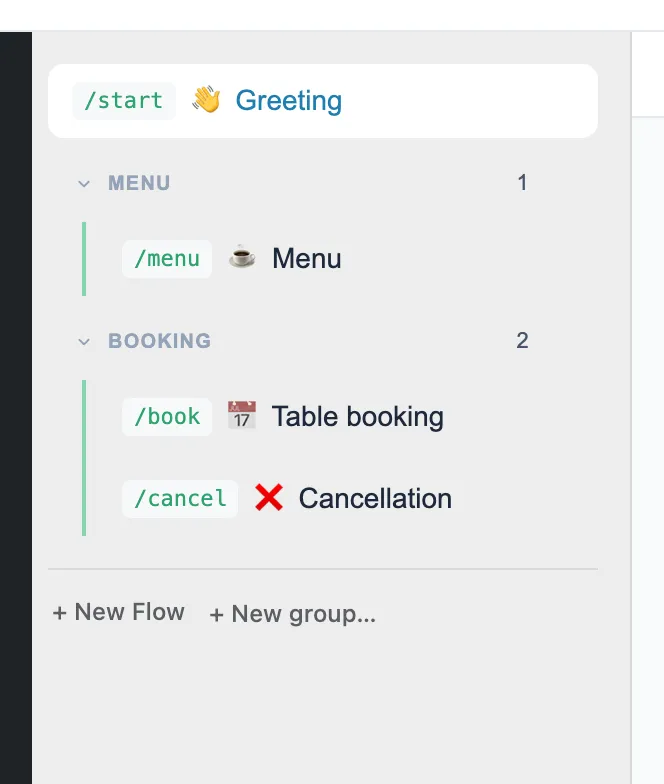
A group comes into being with the first flow moved into it.
- Create a group: "New group…" at the bottom of the list creates a new flow already inside the group. Or hover over a flow and press the folder icon, "Move to group" → "New group…".
- Move a flow: the same folder icon, or drag the flow. Dropped on the middle of a group's header, the flow goes inside the group.
- Collapse a group: click its header. The "Open group" arrow shows only that group's flows.
- Rename or delete a group: the "⋯" menu on its header. Deleting a group deletes all of its flows.
Flow settings
Above the steps are the flow's name and its trigger, what starts it:

-
Command, such as
/startor/menu. Only one flow can have a given command. -
Text Match: the flow starts when the person's message contains this text. Upper and lower case do not matter. The pattern is a regular expression:
^hello$matches only "hello" on its own. - No trigger: the flow is started by a "Navigation" step in another flow, by a broadcast, or by you from a visitor's page.
The trash next to them deletes the flow with all its steps.
Steps
When a step has several continuations, one per button for example, tabs appear above them: each opens its own branch. How to add steps and what kinds there are is on the Steps page.
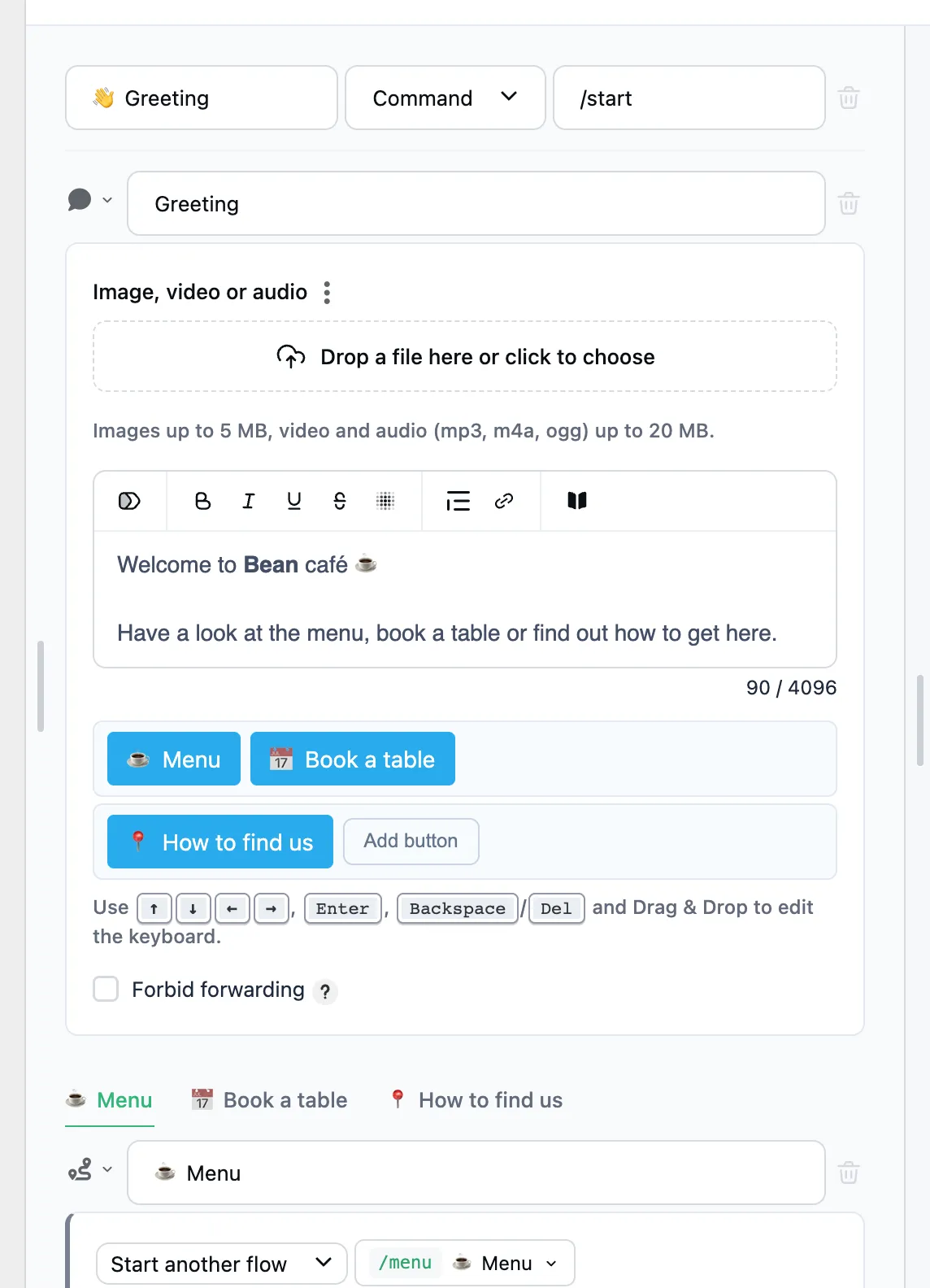
A step's form opens right in its card. The card's header holds:
- the type icon: change the step's type (its content is cleared);
- the step name: for a step after a button, this is also the button's text;
- the trash: delete only this step, so the next one takes its place, or delete it with everything after it.
Preview
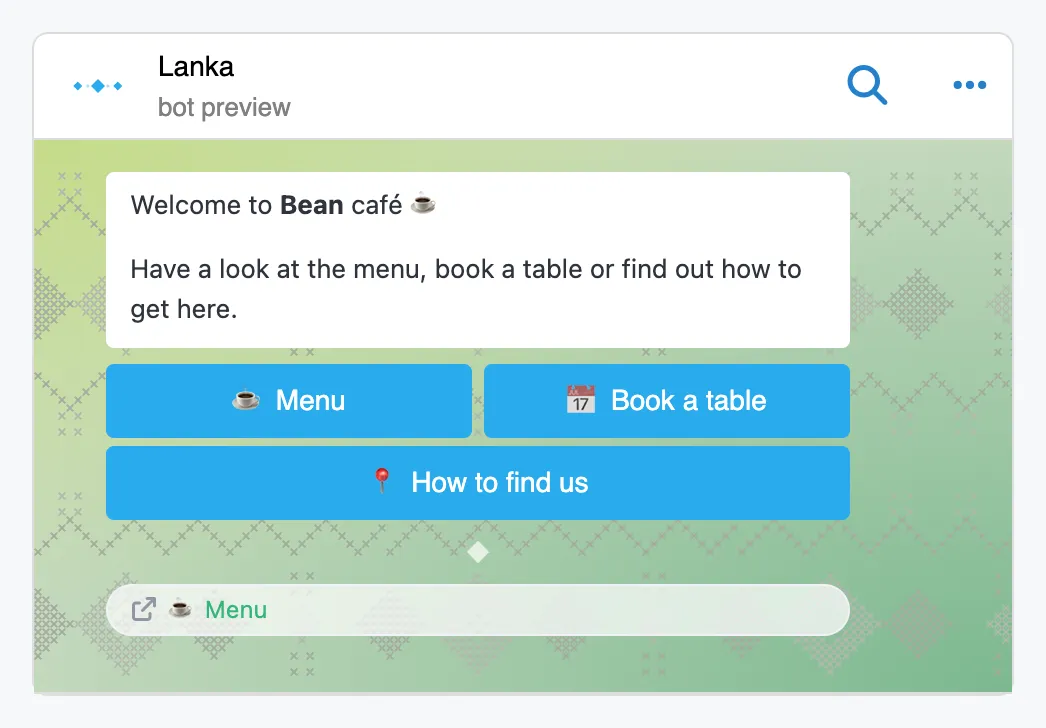
The preview shows the open branch the way the person will see it in Telegram. Its buttons can be pressed: pressing one opens that button's branch among the steps. Scripts run in the preview on sample data.
Draft and publishing
Whatever you change saves itself, into a draft. Visitors see the published version until you update it.
- Publish: the draft becomes the version visitors see.
- Discard: the draft goes away and the published version stays.
-
Try in bot: runs the published flow in your own chat with the bot. Before the first try, send
/startto the bot.
While there are unpublished changes, the bar above the steps is yellow and says "Unpublished changes".

The "Claude" button
On the same bar, the "Claude" button shows the command that ties a Claude Code chat to this page. The Claude Code page explains how to set it up.
When code is needed
Messages, buttons, questions and conditions take no code. To compute a value, transform data or call another service, use the Script step. The Scripts page describes its language.
FAQ
What is a flow in a Telegram bot?
A flow is one conversation, assembled from steps. A trigger starts it: a command, a text match, or a jump from another flow by a "Navigation" step.
How do I test a scenario before publishing it?
In the preview to the right of the steps. Its buttons can be pressed and open their branch. The "Try in bot" button runs the published version.
Can I change a scenario after publishing it?
Yes. Changes go into a draft, and visitors see the published version until you press "Publish". A pen next to the flow's name shows it has unpublished changes.