Message
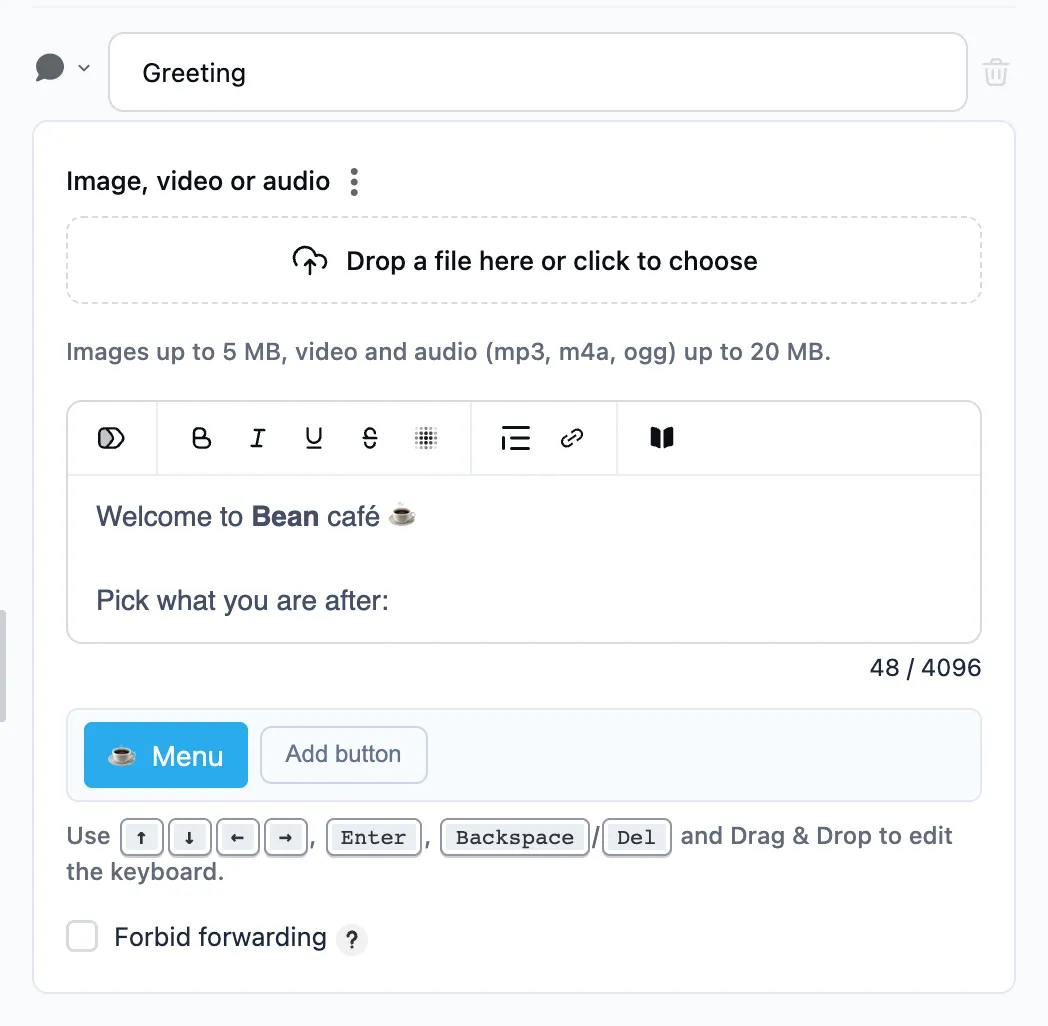
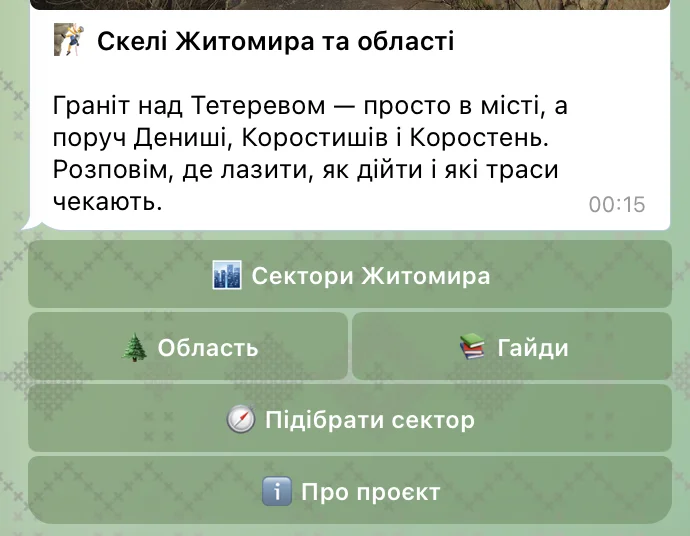
The bot sends a message: text, optionally with a picture, a video or audio and buttons under it.
When to use it
It is the core step of a dialog: a greeting, an answer, a menu of buttons.
How to set it up
- Text — with formatting and variables. A variable goes into the text as a token with its name, «name» for example, and the person sees its value instead — what they gave earlier.
- Picture, video or audio — shown above the text. You can also pick a variable holding a photo or a document the person sent in an "Ask for a file" step. A text longer than 1024 characters arrives as a separate message after the file.
- Buttons — each leads to its own step. With buttons, the bot waits for a tap. Without them, it goes straight to the next step.
What the person sees
Article
The "Article" button in the text formatting bar. The message goes out as a Telegram article: headings, lists, quotes, dividers, code, tables, photos, videos and PDF files appear in the text. Several photos and videos can go together as a collage (a grid, as an album in a chat) or a slideshow (flicked through one by one). Photos, videos, files, collages and buttons are added from the bar above the text. When the bar is narrow, some of them fold into the "Insert" menu. Buttons stand right in the text or in a row under a paragraph, each in its own colour. A button opens a link or leads to a step under this message: an existing one or a new one. With such buttons the bot waits for a tap, as with buttons under the message. A table cell holds formatted text only. Photos, videos and files stand in the text, not as an attachment above it, so the "Picture, video or audio" field goes away. Such a message holds up to 32,768 characters. Buttons work as usual.
Updating in place
A message with tokens, button visibility conditions or a button set can update in place when its data changes: the "Update when its data changes" checkbox at the bottom of the step turns it on. Handy for cards and counters.
Forbidding forwarding
The "Forbid forwarding" checkbox at the bottom of the step: the person cannot forward the message or save its file.