Panels
A panel is a table over the bot's data: orders, requests, bookings or the visitors themselves. In it you can search, filter, change a status, run actions over records and download the data as a file.
The list of visitors is a panel too. Your own panels appear in the "Control panels" menu as separate items.
A panel comes in three kinds:
-
Table — over your list in
app.*or over the visitors. This page is about it. - Schedule — working hours and bookings.
- Storefront — products and orders.
Creating a table
- In the "Control panels" menu, press "Create a new panel" and pick "Table".
- Give the panel a title and pick an icon.
- Under "Source", pick "Bot data" and a list in
app.*, for exampleorders. Or pick "Visitors": then a row of the table is a person. - The columns appear by themselves, from the fields the records have. You can change them.
- Press "Save".
Creating a Schedule or a Storefront
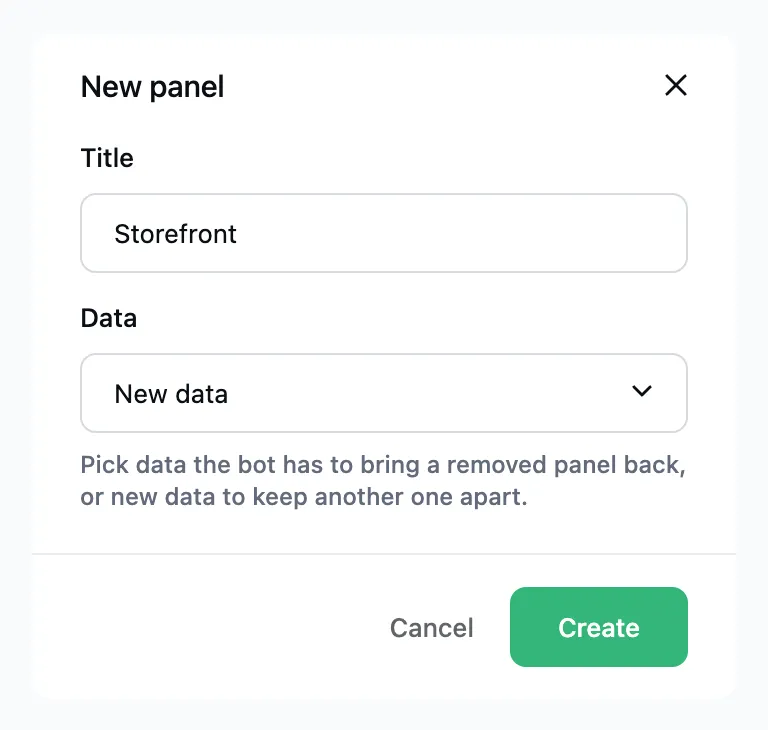
- In the "Control panels" menu, press "Create a new panel" and pick "Schedule" or "Storefront".
- Give the panel a title.
- In the "Data" field, pick the data the panel works with:
- "New, apart from the existing" — an empty panel with data of its own.
- Data the bot already has, named after the panel over it, or "The bot's main data". The panel shows it. This brings a removed panel back with all its records.
- Press "Create".
Columns
- "+ Column" adds a field of the records. A field inside an object can be picked too, for example
access.expires_at. - "Suggest from the records" replaces the columns with ones that fit the records.
- A column's type sets how the value is shown: text, number, money with a unit, date, a status with names and colors, a list, a visitor.
- Drag the columns to change their order.
- The "Sortable" and "Filter" checkboxes add sorting by the column and a filter above the table.
- A status can be allowed to change right in the table.
Over visitors, columns can take user.* variables and the data from Telegram: platform.username, platform.language_code, platform.first_seen, platform.last_seen and so on.
Actions
An action is a button in a table row. It runs a script over the record, a flow for the person the record belongs to, or both. An action can be shown only on records with a certain status, and allowed over several selected records at once.
Download
"Download" saves the table as a file:
- XLSX — for Microsoft Excel;
- CSV — comma-separated values, for any program.
The file holds every row of the table with the current search, filters and sort, in the panel's columns. Amounts and numbers stay numbers; dates are in the bot's time zone.
Live link
A live link is a permanent address of the panel's table as CSV. Google Sheets pulls it in by itself and refreshes it about once an hour.
There is no link by default. To create one:
- Open the panel's settings.
- In the "Live link" block, press "Create the link".
- Copy the formula
=IMPORTDATA("…")and paste it into cell A1 of a Google sheet.
The link always serves the whole panel as it is set up. The search and filters on the screen do not affect it.
Whoever has the link sees the panel's data without signing in to Lanka. Do not publish it.
- "Reissue" creates a new link. The old one stops working at once, so paste the new one into the sheet.
- "Turn off" removes the link altogether.
The same link opens in Excel through "Data" → "From Web", and in Airtable or Looker Studio.