How to take client bookings through a Telegram bot
The «Запис на час» (Booking) template turns the bot into a Telegram booking bot: the client picks a specialist, a day in a calendar and a free time, leaves a phone number and confirms the booking. A booking can be free or paid, in stars or by card. You get a message about every booking, and the client gets reminders before the visit. Schedules and working hours live in the Schedule panel.
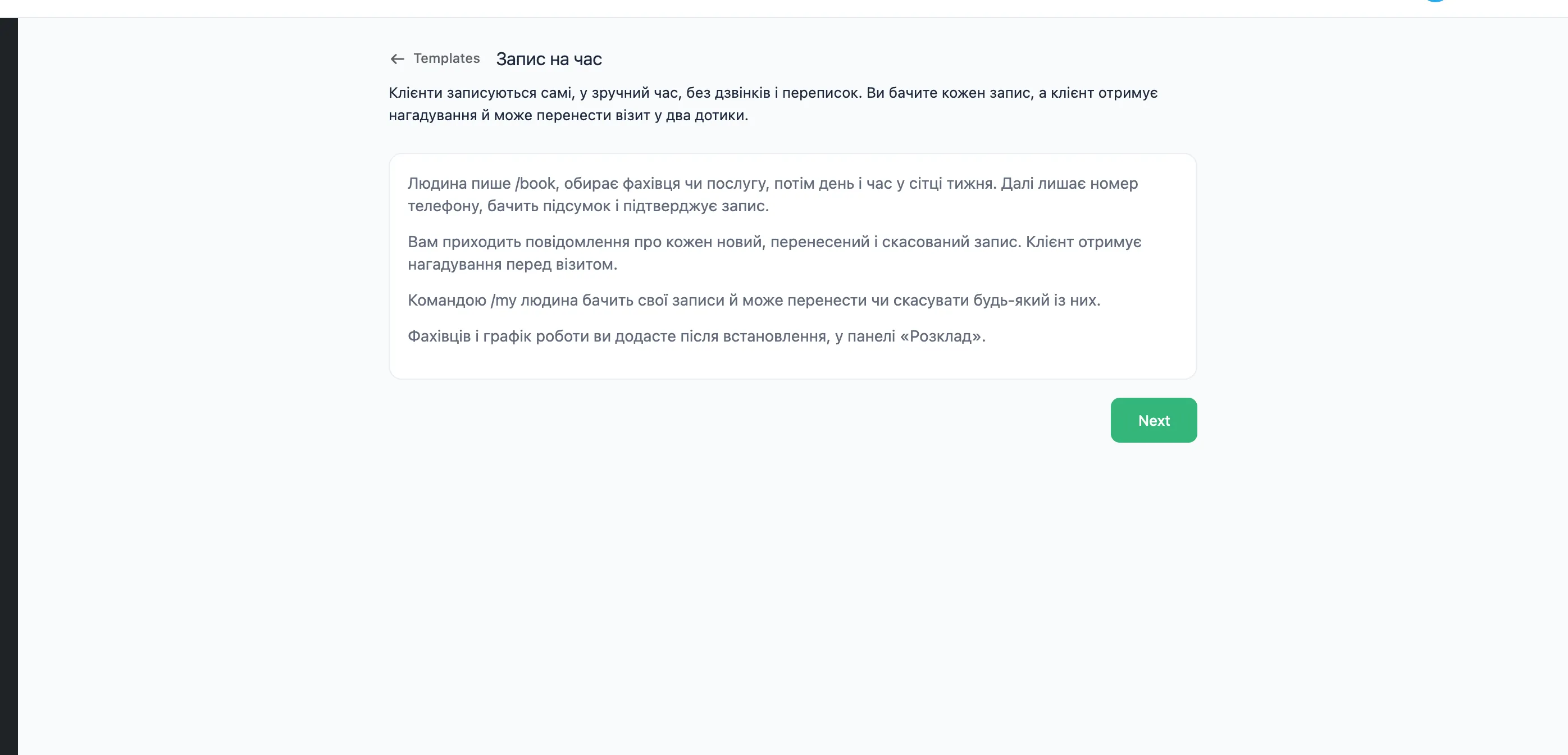
The template's texts are in Ukrainian. You can change them in the wizard and in the editor.
What the client goes through
- The client starts the booking with the
/bookcommand, from the bot's menu or as a message. With several calendars, the bot asks whom to book with and shows the specialists as buttons. - The bot shows a two-week calendar where only days with free time can be tapped. The client taps a day.
- The bot shows that day's free times as buttons. The client taps a time. With the "Week grid" Mini App picked in the wizard, these two steps become one: the client presses "🗓 Обрати час" and picks the day and the hour in a week grid inside Telegram.
- The bot asks for a phone number: with a button under the input field, or as a message. A client whose number the bot knows from an earlier booking is not asked.
- The bot shows a summary: the specialist, the time, the number. The client presses "✅ Усе правильно" (All correct), "✏️ Змінити час" (Change the time) or "📱 Інший номер" (Another number).
- With a paid booking, the bot sends an invoice. While the client pays, the time is held for them for up to 15 minutes. Unpaid by then, the invoice lapses and the time is free again.
- The bot confirms the booking. If that time was just taken, the bot offers to pick another.
- A day and an hour before the visit, the bot reminds the client of it.
- With the
/mycommand the client sees their bookings and can move or cancel any of them. Moving a paid booking does not ask for another payment.
What you get
- A message from the bot about every new, moved and cancelled booking: the time, the client's name, their @username and phone number.
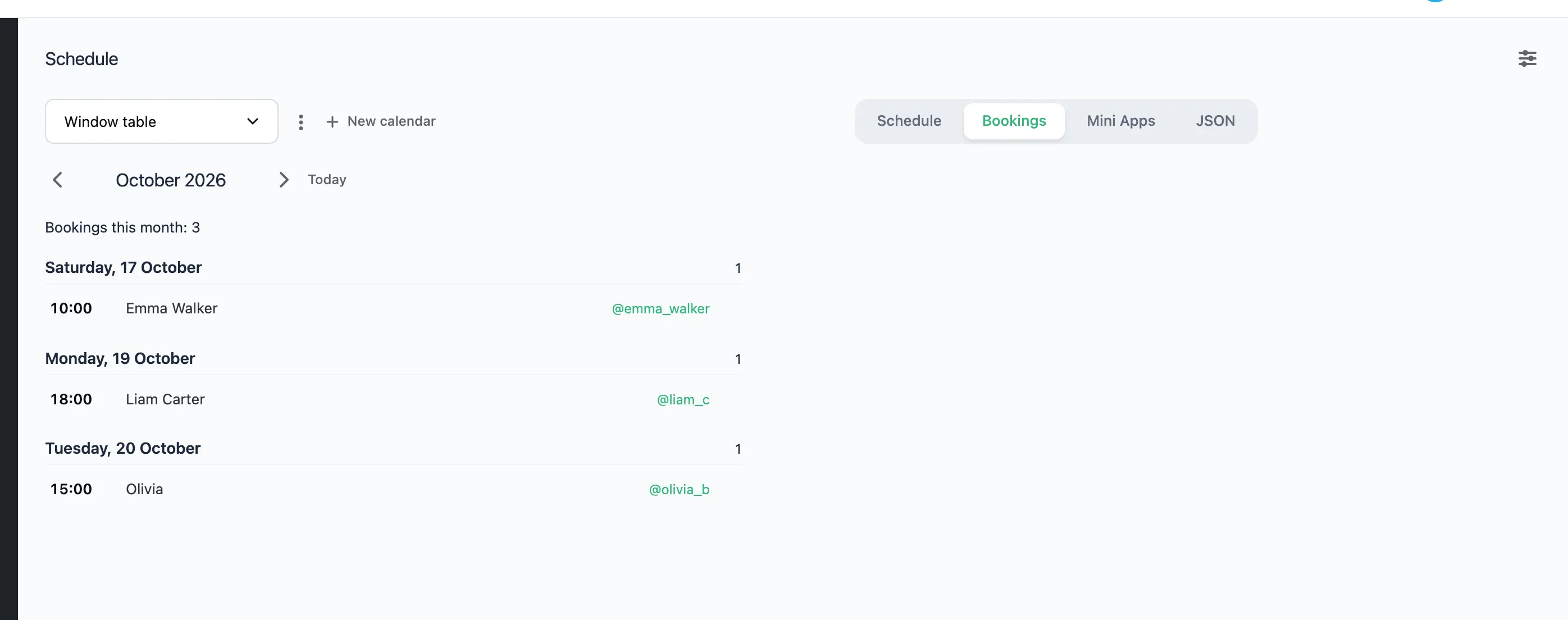
- Every booking in the Schedule panel on the "Bookings" tab, by day, with notes.
What the template installs
- Seven flows: «📅 Записатися» (
/book), «🗓 Вибір часу», «🕒 Вільні години», «✅ Підтвердження», «🧾 Підсумок», «📌 Запис» and «📋 Мої записи» (/my). In the chat calendar the client picks the day with a Pick a date step and the time with a Button set step; the week grid opens with a Launch Web App step. - The Schedule panel with the "Week grid" Mini App.
What the wizard asks
- Schedule — first the "Calendars" field: the ones the bot already has (named as their panel in the menu), or "New, apart from the existing". New ones, when the main data is taken, get a name of their own, and this copy of the template lives apart. Below it, the same Schedule panel as after installing: create a calendar for a specialist or a service and set the working hours for this week and the next. "Next" becomes available once the calendar has free time.
- How the client picks a time — a calendar in the chat, or the "Week grid" Mini App.
- Picking a time — the text above the calendar, or above the button that opens the week grid.
- Payment — free or paid. For a paid booking, the form of the Payment in stars or Payment by card step: the way to pay and the price. Payment by card needs a payment provider in the bot's settings.
- Reminders — a day before, an hour before, both or neither.
- Message to you — the text you get about a new or moved booking.
- Review and install — the name of the flows' group, their commands and whether they go into the bot's menu.
The Templates page describes how to go through the wizard.
After installing
- Send the bot
/bookand go through a booking yourself. - To take bookings for later weeks, open the Schedule panel and set working hours on the new days. "Set up several days" gives many days the same hours at once.
- Add other specialists, rooms or services with "New calendar" in the same panel.
When the calendar has no free day left, the bot answers /book that there is no free time right now.
FAQ
Does Lanka have a built-in booking calendar?
Yes. The Schedule panel keeps the working hours and bookings. The client sees the free time either in a calendar in the chat or in the "Week grid" Mini App, as you pick in the wizard. The panel also has the "Calendar" Mini App, opened by the "Launch Web App" step.
Can clients book with several specialists?
Yes. Create a separate calendar for each. The client picks the specialist with a button before picking a time.
Can I take payment for a booking?
Yes. On the wizard's "Payment" step pick "Paid", the way to pay and the price. The client pays the invoice in Telegram, and only then is the time theirs.
Does the bot remind the client of the booking?
Yes, a day and an hour before the visit. Both reminders are turned on or off in the wizard, and their text can be changed in the editor.
Can I connect my own calendar instead of the panel?
Yes. The Launch Web App step opens any page by its URL and saves what the person picked in it to a variable.