How to make a shop in a Telegram bot: a catalog in a Mini App, a cart and orders
The «Магазин» (Shop) template turns the bot into a Telegram shop with a product catalog: the client browses products with photos and prices in a Mini App, puts them in a cart and places an order, which comes to you at once. Products and orders live in the Storefront panel.
The template's texts are in Ukrainian. You can change them in the wizard and in the editor.
What the client goes through
- The client sends the
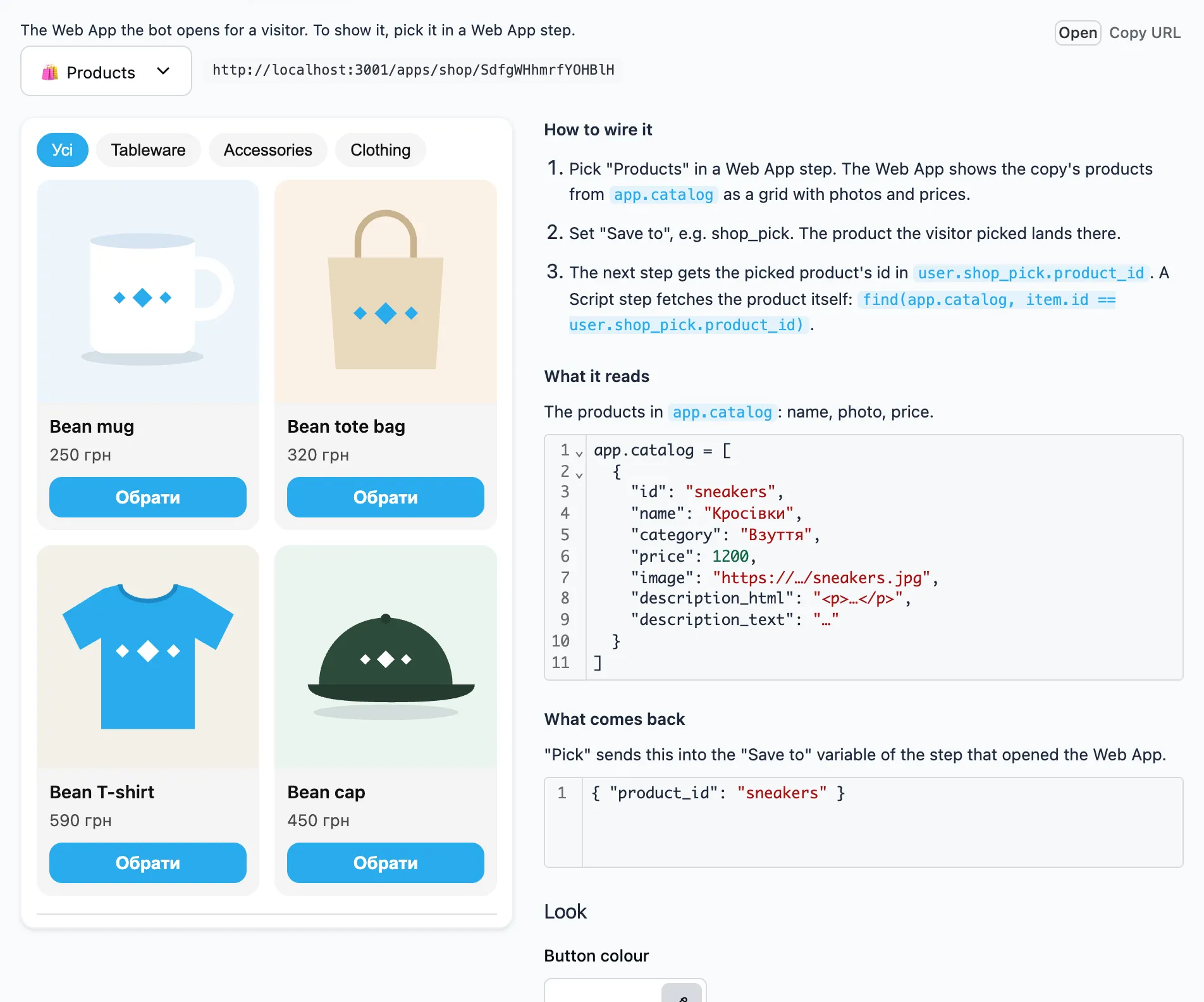
/shopcommand. The bot shows the latest products as a list of links and the cart total, and under the input field the buttons "🖼 Вітрина" (Storefront), "🧺 Кошик" (Cart) and "🧾 Оформити" (Check out). - The storefront button opens the "Products" Mini App: a grid of products with a photo and a price, categories as filters. The client presses "Pick", and the bot shows the product's card.
- In the card the client presses "🛒 Додати в кошик" (Add to cart). The bot shows the cart total and offers to check out or keep shopping.
- The cart button opens the "Cart" Mini App: here the client changes the quantity or removes a product and presses "Check out".
- The bot asks for a phone number if it does not know it yet, and shows a summary: the items, the total and the number. Here the client can change the cart or the number.
- The client picks a way to pay among the ones you turned on in the wizard. "✅ Оплачу при отриманні" (Pay on delivery) places the order at once. "💳 Оплатити карткою" (Pay by card) first sends an invoice for the cart total.
A product's link from the list opens its card right away. Such a link can go into a broadcast or a channel.
What you get
- A message about every order: the client, the phone number, the items, the total and whether it is paid.
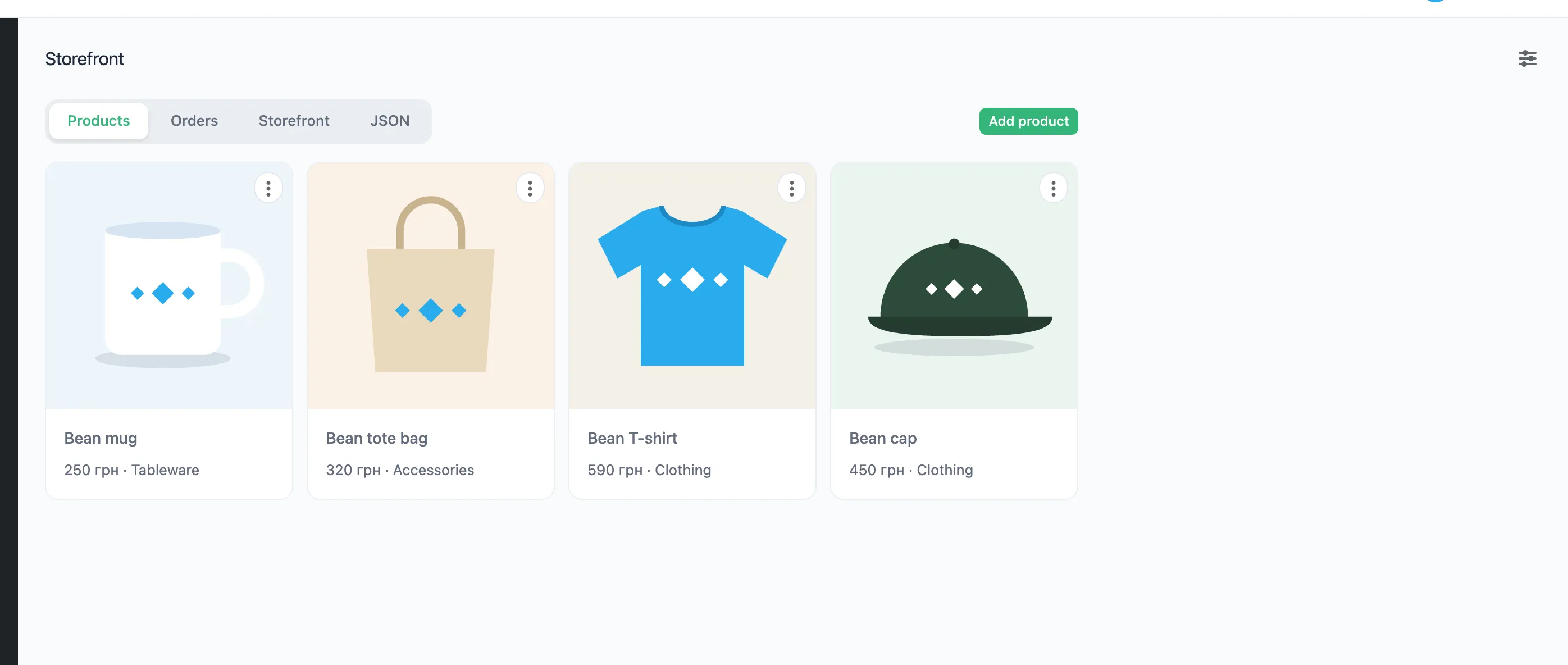
- The orders in the Storefront panel on the "Orders" tab, with the payment and the status "New" or "Done".
What the template installs
- The flows «🛍 Магазин» (
/shop), «🛍 Картка товару», «🧾 Оформлення», «🧾 Перевірка замовлення», «📦 Замовлення», «🛍 Товар за посиланням» and «Сповіщення про замовлення». - The Storefront panel with the "Products" and "Cart" Mini Apps.
The template shows prices in hryvnias.
What the wizard asks
- Products — first the "Products" field: the ones the bot already has (named as their panel in the menu), or "New, apart from the existing". Below it, the same Storefront panel as after installing: add products with a name, a price, a photo and a description. "Next" becomes available once the storefront has at least one product.
-
Storefront in the chat — the text the bot sends on
/shop. - Payment — on delivery, by card in the bot, or both, and then the client picks. At least one way must stay on. A card needs the form of the Payment by card step and a payment provider in the bot's settings.
- Message to you — the text you get about a new order.
- Review and install — the name of the flows' group, their commands and whether they go into the bot's menu.
The Templates page describes how to go through the wizard.
After installing
- Send the bot
/shopand place an order yourself. - Add new products in the Storefront panel.
- On the "Storefront" tab check how the Mini App looks in Telegram. The button colour and the corners change in the "Look" block.
Payment
With payment by card the bot sends an invoice for the cart total. The invoice is valid for 30 minutes. The order comes to you after the payment, marked "Оплачено карткою" (Paid by card). Digital goods are sold, by Telegram's rules, with the Payment in stars step, added in the editor.
FAQ
Do I need a website for the catalog?
No. The products live in the Storefront panel, and the "Products" Mini App opens right inside Telegram.
Can I show the products as buttons, without a Mini App?
Yes. The Button set step shows a row of buttons from a list, the products in app.catalog for example.
Where do the orders appear?
In the Storefront panel on the "Orders" tab, and in a message from the bot. An order's status changes right in the table.
Does the bot take payment?
Yes, when payment by card is turned on in the wizard. It needs a payment provider in the bot's settings. An order paid on delivery comes to you at once, and you agree on the payment with the client.