Storefront
The Storefront panel keeps a shop's products and orders. From it the bot shows clients the products and their cart.
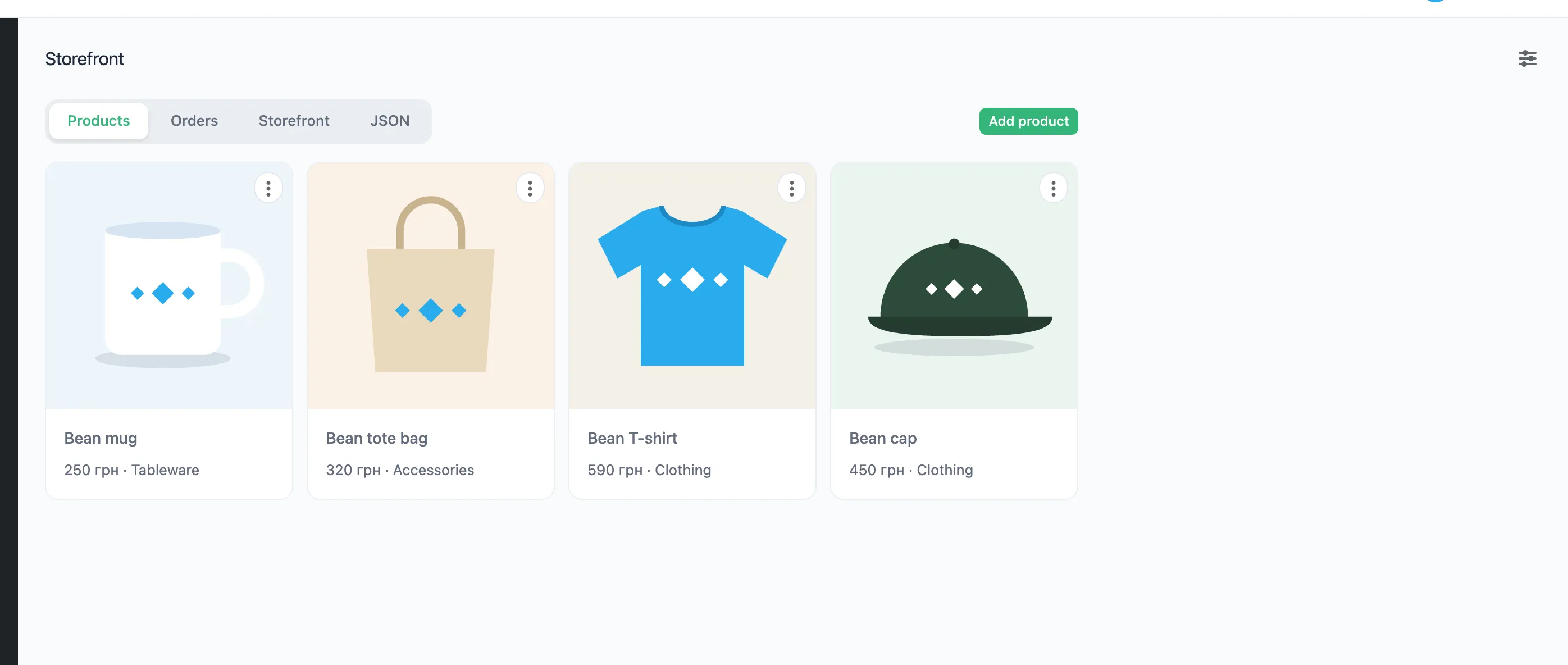
The Shop template adds this panel. You can also create it on its own, as the Panels page describes.
Products
- On the "Products" tab, press "Add product".
- Fill in the name, category, price, photo and description. The category is optional.
- Press "Save".
To change a product, click its card. The ⋮ menu on the card edits or deletes the product.
The categories become filters above the products in the Mini App.
Orders
The "Orders" tab shows the orders clients placed: when, who, the phone, the items, the total, the payment and the status. The status can be changed right in the table.
Mini Apps
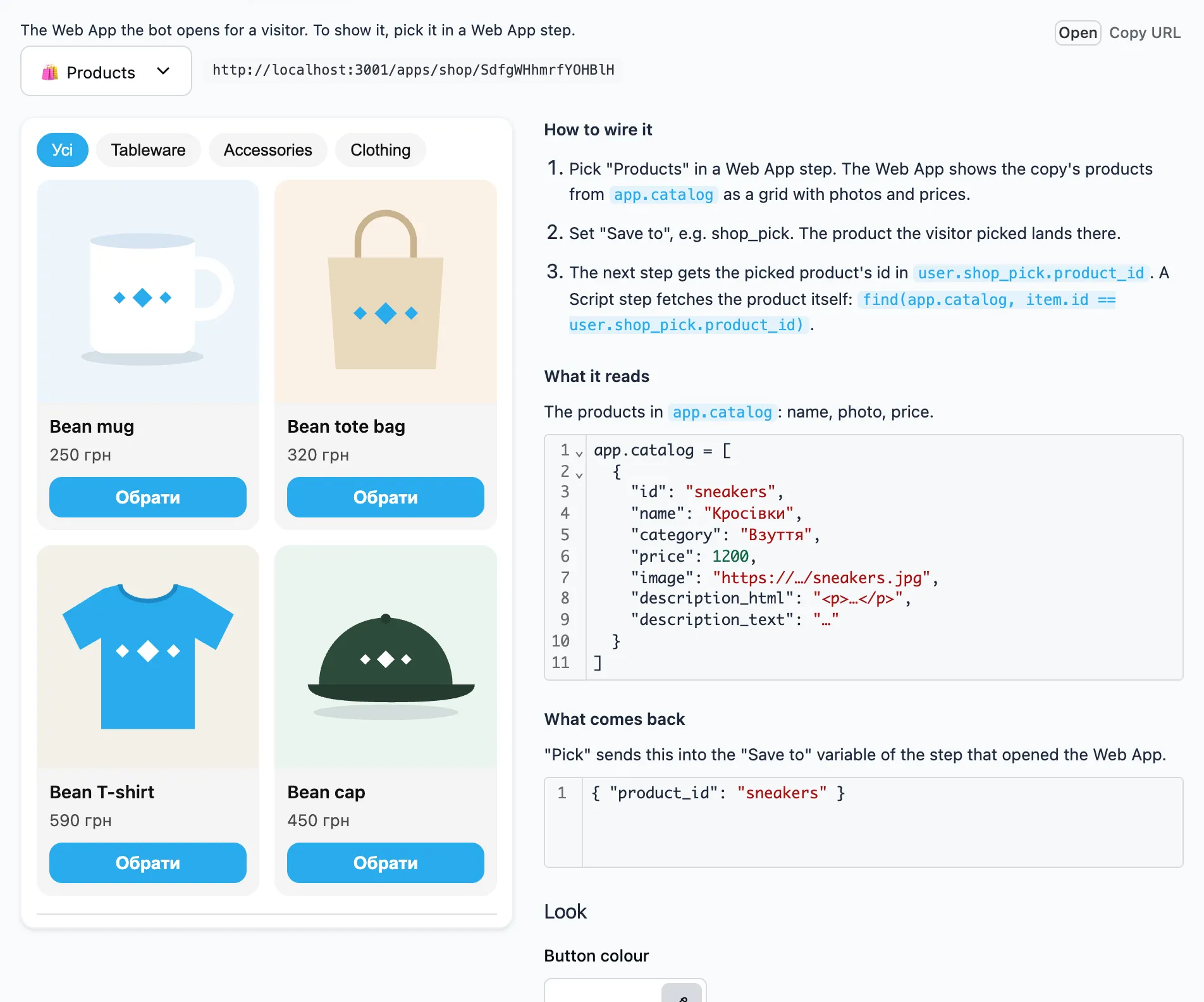
The "Storefront" tab shows how a Mini App looks in Telegram. There are two:
- Products — a grid of products with photos and prices. When a client presses "Pick", the bot gets the product's id.
- Cart — the products the client put in the cart. There the quantity can be changed or a product removed. The "Checkout" button leads to the next step.
To show a Mini App to a client, add a button with the Launch Web App step and pick it in the "Mini App" field. Next to the preview it says what the Mini App shows and what the bot gets.
Look
Under the Mini App's description is the "Look" block:
- Button colour. Without a colour, the buttons follow the client's Telegram theme.
- Corners: "Rounded" or "Sharp".
The background and the text always follow the client's Telegram theme. Each Mini App has its own look.
JSON
The "JSON" tab shows the list of products as it is. You can change it there directly.