Pick a date
The bot sends a calendar and waits for the person to pick a day. The date is saved to a variable, and the dialog moves on.
What it looks like
The step's text stands above the calendar, the month's name under it. The calendar shows a month, two weeks or a week. The days go in weeks from Monday. A day that can be picked is a button. Today stands out. The arrows at the bottom turn to the nearest month or weeks with a day to pick, in the same message. A date can be typed too: 16.10.2026, 16.10 or 2026-10-16.
How to set it up
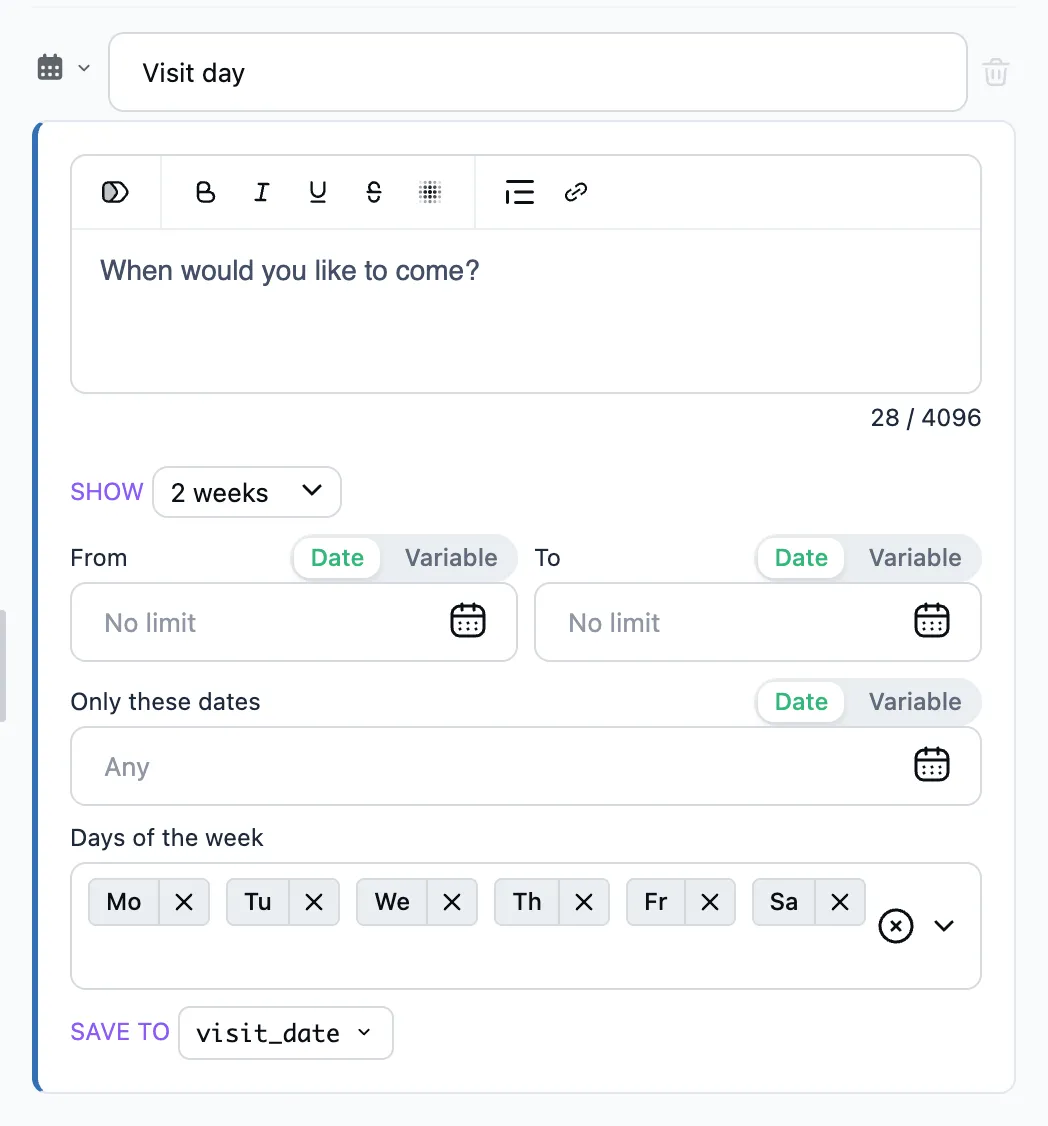
- Write the question in the step's text.
- Show — a month, 2 weeks or a week. Weeks suit booking for the coming days: the message is short.
- From and To — the first and the last date that can be picked. Empty means no limit.
- Only these dates — the particular days to pick from. Empty means any.
- Days of the week — which days can be picked. Empty means any. The field goes away once particular dates are picked: they are the whole choice then.
- Save to — the variable the date goes to.
"From", "To" and "Only these dates" can come from a variable: the bot reads it in the conversation when it sends the calendar. It suits the free days of a schedule: a script or an API request puts them in a variable as a list of dates, and the step offers only those. When the list from the variable is empty, nothing can be picked.
The calendar opens on today, or on the nearest day of the range when today is outside it. With dates listed, it opens on the first of them still ahead. Today is counted in the bot's time zone. Once a day is picked, the calendar message goes away.
What is saved
The date as 2026-10-16.
If the person stays silent
Add the timeout branch ("No reply") under the step and set how long to wait. When the time runs out, the dialog takes that branch.