Send a voice message
The bot sends audio as a voice message.
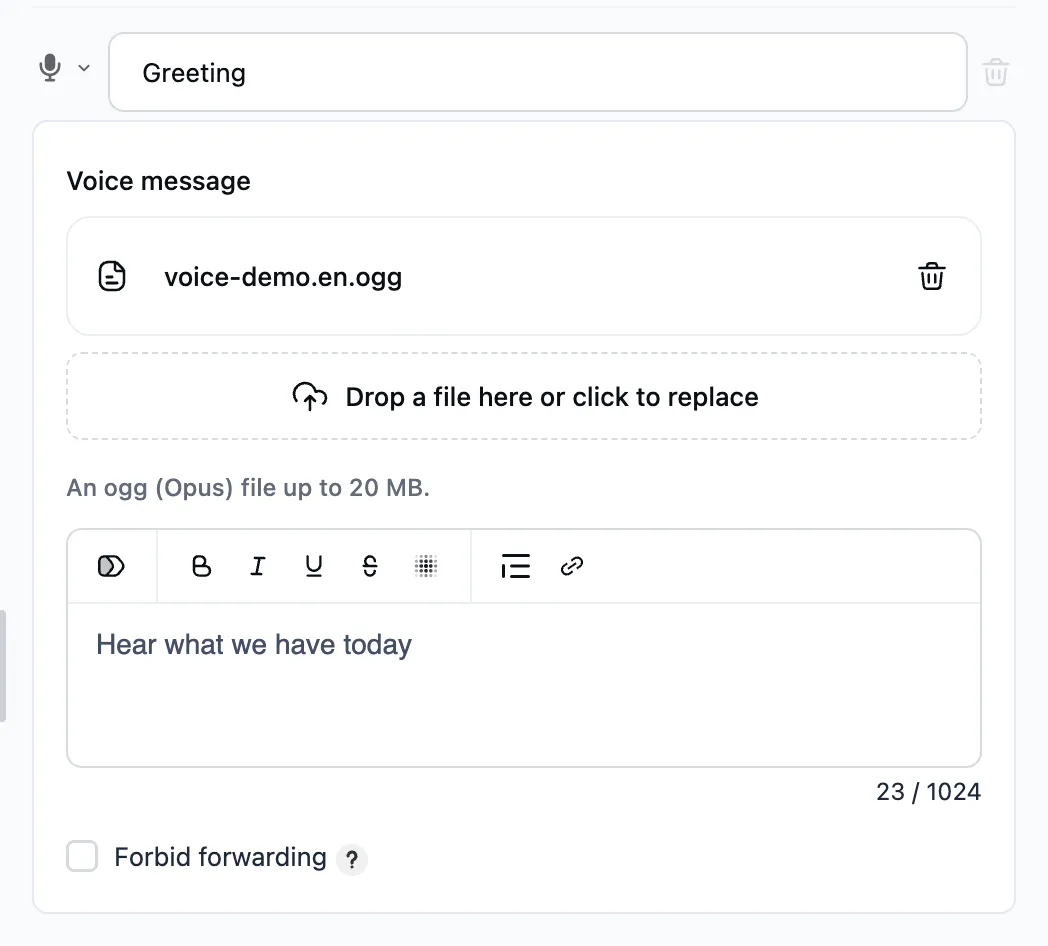
How to set it up
- Upload an ogg (Opus) file up to 20 MB to the step.
- Or press "Record through the bot": the bot writes to you in Telegram, and you record a voice message for it or forward one. It gets attached to the step.
- Or name a variable. It can hold the address of an audio file, or a voice message the bot received in the chat.
- The text, if any, becomes the caption under the voice message.
If the variable holds nothing, the bot sends nothing and goes to the next step.
A voice message has no buttons — add them with a message step after it.
A voice message sent to the bot
An Ask for a voice message step saves to a variable the voice message the person recorded in the chat, or the audio file they sent. In the "Send a voice message" step pick the "file_id" field of that variable.
A voice message recorded in the chat goes out as a voice message. Telegram does not send an audio file (mp3, m4a) as one — it arrives as a named audio track.
Forbidding forwarding
The "Forbid forwarding" checkbox at the bottom of the step: the person cannot forward the message or save its file.